Part of my ongoing journey through Bryan Krausen’s HashiCorp Vault for Absolute Beginners on Udemy. This session covered Vault Authentication Methods — how humans and machines prove their identity to Vault, and how roles control what they are allowed to do once authenticated.
What Are Vault Auth Methods?
Vault auth methods are the components responsible for authenticating users and systems that access Vault. Their primary job is to assign an appropriate identity and attach the correct policies to any vault client — whether that is a human administrator or an automated workload running in the cloud.
The key outcome of every auth method is the same: a client token. Once authenticated, Vault issues a token with policies and a TTL attached, and that token is what the client uses for every subsequent request — reading secrets, writing data, or any other operation.
As we covered in the previous post, the Token auth method is always enabled by default and cannot be disabled. Every other auth method ultimately produces a token as its end result.
The Authentication Flow
The general flow works like this regardless of which auth method you use:
- A vault client (user or application) submits credentials to Vault
- Vault validates those credentials against the backend provider (for example, an LDAP server, the AWS API, or the Kubernetes API)
- If the backend confirms the credentials are valid, Vault generates a token with the appropriate policies and TTL attached
- The token is returned to the client
- The client uses that token to access secrets inside Vault
So for example, if you authenticate using LDAP credentials, Vault reaches out to your LDAP server to confirm validity, then returns a token. That token might permit the holder to read a username and password stored in Vault, which they then use to access some other system.
Human vs Machine Auth Methods
Vault auth methods split broadly into two categories: human-based and machine-based.
Human-Based Auth Methods
Designed for end users — administrators, engineers, developers — who are logging into Vault interactively through the UI or CLI. These methods integrate with existing identity providers and use credentials that are easy to remember.
| Auth Method | Description |
|---|---|
| Username/Password | Simple username and password for direct user authentication |
| LDAP | Integrates with existing directory services for centralised user management |
| OIDC | Popular for SSO, often used with Google, Azure AD, or Okta |
| GitHub | Useful for teams managing access through GitHub organisations |
Many human auth methods also support MFA — push notifications via Okta or Azure AD are common examples. They often involve interactive prompts that require user input, which is why they are grouped as human-based.
Machine-Based Auth Methods
Designed for automated processes — applications, services, workloads — that need to authenticate without human interaction. These methods do not rely on memorable credentials. Instead, they use service credentials, TLS certificates, or platform metadata.
| Auth Method | Description |
|---|---|
| AppRole | Designed for machines and services, especially when no platform integration is available |
| AWS | Uses IAM roles or EC2 instance metadata to authenticate workloads running on AWS |
| Kubernetes | Uses Kubernetes service accounts to authenticate pods and workloads |
| Azure | Uses Azure managed identities or service principals |
| GCP | Uses GCP service account credentials |
| TLS Certificates | Authenticates using client certificates |
The platform-based methods (AWS, Kubernetes, Azure, GCP) work by having the workload pass its platform metadata to Vault. Vault then validates that metadata against the platform’s own API to confirm the identity is legitimate. This makes the entire authentication flow automated and requires no human intervention.
AppRole fills the gap when no platform is available — it is the go-to method for non-cloud or on-premises machine authentication.
Enabling Auth Methods
Most auth methods must be explicitly enabled before use. Each one functions as a plugin that you activate and configure for your specific environment.
You can enable multiple auth methods simultaneously. A common real-world setup might use LDAP for human login and AppRole or AWS IAM for machine authentication running in parallel.
When you enable an auth method, it is mounted at a path. If you do not specify a custom path, Vault uses the auth method name as the default path.
# Enable AppRole at the default path (approle/)
vault auth enable approle

# Enable AppRole at a custom path
vault auth enable -path=vault-course approle
Custom paths are useful when you have multiple instances of the same auth method — for example, two separate AWS accounts. Naming them meaningfully makes the setup easier to manage at a glance.
Useful Auth Commands
| Command | What It Does |
|---|---|
vault auth enable <method> |
Enable an auth method at the default path |
vault auth enable -path=<name> <method> |
Enable an auth method at a custom path |
vault auth disable <path> |
Disable an auth method |
vault auth list |
List all currently enabled auth methods |
vault auth tune |
Configure settings for an existing auth method |
vault auth help |
Get usage help for auth commands |
Roles: Controlling What Clients Can Access
Enabling an auth method controls how a client authenticates. Roles control what they can access after authentication.
Think of roles as Vault’s implementation of Role-Based Access Control (RBAC). Each role defines a specific set of permissions by attaching a policy to any token generated from that role. Different clients get different roles, and therefore different levels of access.
For example:
- An app developer might have a role that permits reading credentials specific to their application
- A vault admin might have a role with broad permissions to manage the entire Vault environment
- An application workload might have a role scoped only to the exact secret path it needs
Roles are created within the context of a specific auth method. Whether you are using OIDC, AppRole, Kubernetes, or AWS, you define the role under that auth method and specify which policy the resulting token should carry.
Roles in a Kubernetes Context
To make this concrete, imagine four services running in a Kubernetes cluster: a queuing service, a data processing service, and two web apps. Each needs access to different secrets in Vault.
| Workload | Role | Policy | Secret Path |
|---|---|---|---|
| Queuing Service | role-app-queue |
queue policy | kv/apps/queue |
| Data Processing | app-processing |
processing policy | kv/apps/prod/processing |
| Web App (x2) | web-app |
api policy | kv/common/api |
When the queuing service needs to authenticate, it submits its Kubernetes service account details and requests to authenticate using the role-app-queue role. Vault validates that service account against the Kubernetes API, returns a token with the queue policy attached, and the workload uses that token to read only the secrets it needs. Every other secret in Vault is outside its reach.
This same workflow applies whether you are using AWS, Azure, or any other platform-based auth method. The platform metadata changes but the principle is identical.
Lab: Listing and Enabling Auth Methods
Checking What Is Enabled
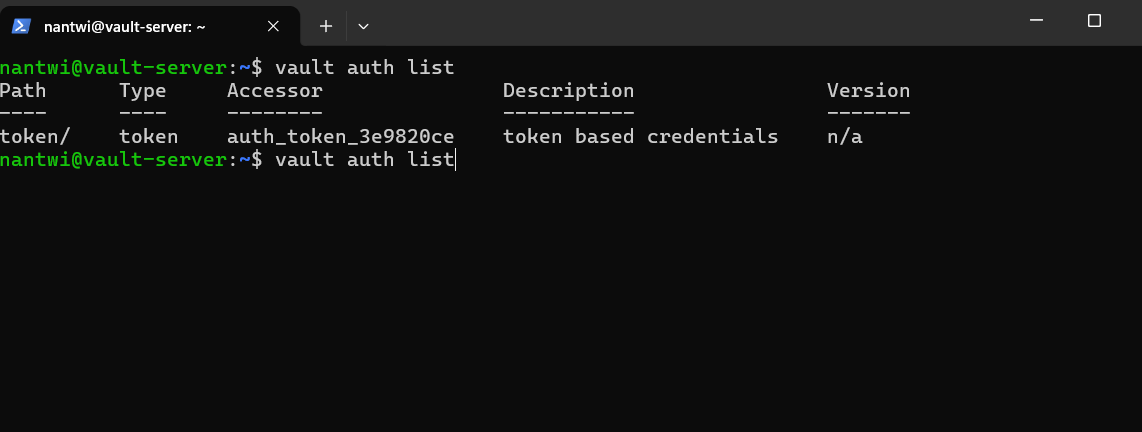
Before enabling anything, I listed the currently active auth methods:
vault auth list
At this point, only the token auth method was active — the default that ships with every Vault installation and cannot be disabled.
Lab: Username/Password Auth Method
Enabling Userpass
vault auth enable userpass
This enables the userpass auth method at its default path of userpass/.
Creating a User
vault write auth/userpass/users/vault-user password=vault123 policies=devops
Breaking this command down:
| Part | Meaning |
|---|---|
vault write |
Write (create) something in Vault |
auth/userpass/users/ |
The path to the users store inside the userpass auth method |
vault-user |
The username being created |
password=vault123 |
The password for this user |
policies=devops |
Attach the devops policy to any token generated when this user logs in |
The policies=devops part is what links this user to a specific permission set. When vault-user logs in, their token will carry the devops policy, which controls exactly what paths and operations they are permitted to use inside Vault.
Listing Users
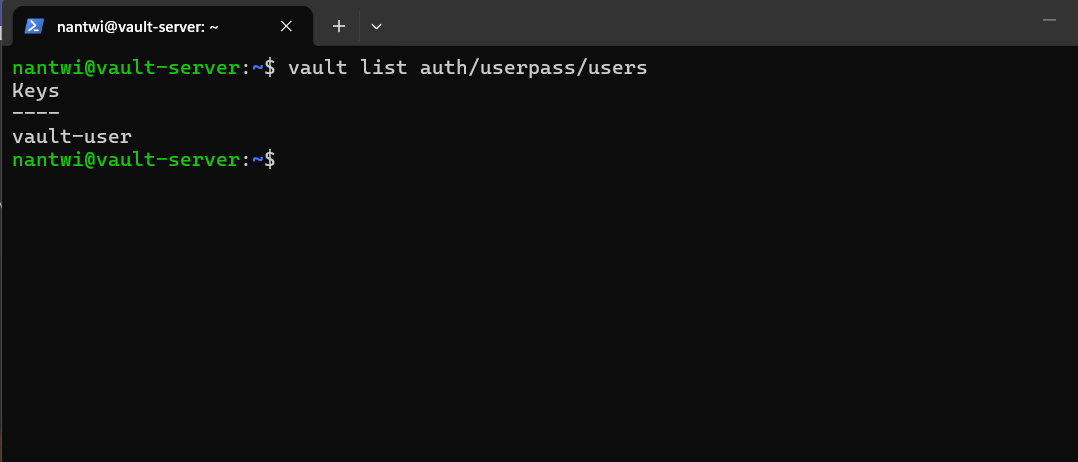
To see all users registered under the userpass auth method:
vault list auth/userpass/users
To inspect the configuration for a specific user:
vault read auth/userpass/users/vault-user
Logging In
vault login -method=userpass username=vault-user
Vault will prompt for the password. Once entered and validated, a token is issued with the attached policies. That token is then stored locally and used for subsequent CLI requests.
Lab: AppRole Auth Method
AppRole is designed specifically for machine-to-machine authentication. Instead of a username and password, an application authenticates using two pieces of information: a Role ID and a Secret ID. Think of the Role ID as the username and the Secret ID as the password — except both are generated by Vault, not chosen by a human.
Enabling AppRole
vault auth enable approle
Enables AppRole at the default path of approle/.
Creating a Policy
Before creating roles, a policy needs to exist to attach to them. I created a cloud policy:
vault write cloud policy.hcl
Creating the team-cloud Role
vault write auth/approle/role/team-cloud \
    token_ttl=20m \
    token_max_ttl=1h \
    policies=cloud
Breaking this down:
| Part | Meaning |
|---|---|
vault write |
Create or update something in Vault |
auth/approle/role/team-cloud |
Path to create the role named team-cloud under the AppRole auth method |
token_ttl=20m |
Tokens issued via this role expire after 20 minutes |
token_max_ttl=1h |
Tokens can be renewed but can never exceed 1 hour total lifetime |
policies=cloud |
Attach the cloud policy to all tokens generated from this role |
This role is essentially saying: “Any application that authenticates using this role will receive a short-lived token with cloud policy permissions, and that token can live no longer than one hour.”
Creating the devops Role
vault write auth/approle/role/devops \
    policies=devops \
    token_ttl=4h \
    token_max_ttl=24h
A longer-lived role, appropriate for a devops use case where the operator needs access for an extended session.
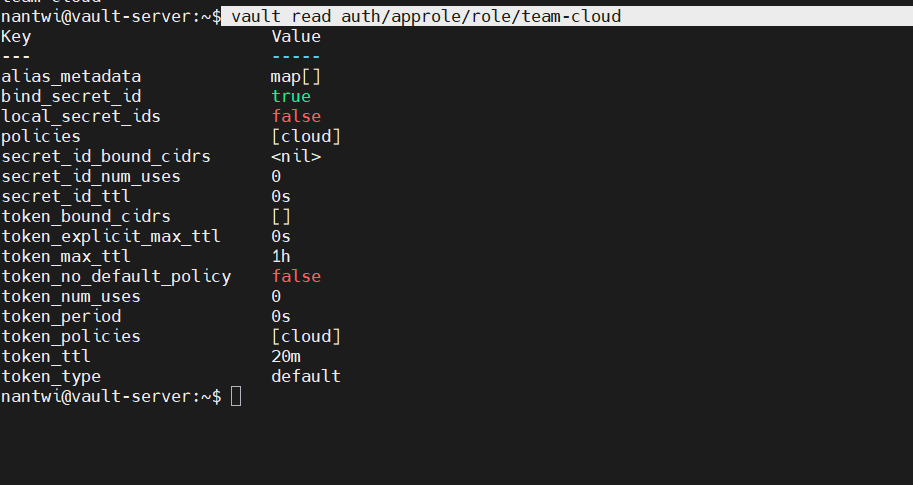
Verifying Role Configuration
To read back the configuration for a role:
vault read auth/approle/role/team-cloud
To list all roles registered under AppRole:
vault list auth/approle/role
Lab: Retrieving Role ID and Secret ID
AppRole works differently from userpass. You do not hand the Role ID and Secret ID directly to the application at creation time. Instead, you retrieve them from Vault and then securely deliver them to the application separately. This separation is intentional — it means no single pipeline or person ever holds both credentials simultaneously.
Getting the Role ID
vault read auth/approle/role/team-cloud/role-id

The Role ID is static and can be considered semi-public — it identifies the role but cannot authenticate on its own.
Generating a Secret ID
vault write -f auth/approle/role/team-cloud/secret-id
The -f flag tells Vault to force-write without providing any additional data — it just generates the Secret ID on demand.
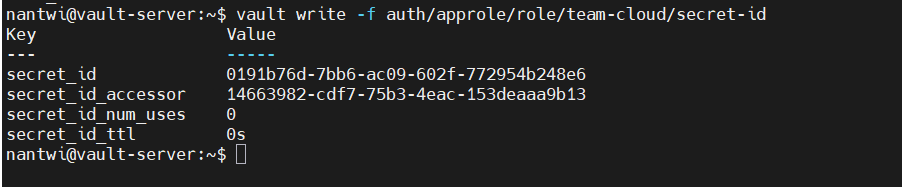
The response includes two values:
- Secret ID: The credential the application uses to authenticate (treat this like a password)
- Secret ID Accessor: A reference to the Secret ID that can be used to look up or revoke it without exposing the Secret ID itself
Once the application has both the Role ID and the Secret ID, it can authenticate to Vault using those two values and receive a token with the cloud policy attached.
AppRole Authentication Flow (Summary)
- Vault admin creates the AppRole role with desired policies and TTL settings
- Role ID is retrieved from Vault and delivered to the application (can be stored in config)
- Secret ID is generated and delivered to the application via a secure channel (treated as a secret)
- Application submits both Role ID and Secret ID to Vault’s AppRole login endpoint
- Vault validates the credentials, generates a token with the
cloudpolicy attached - Application uses the token to access the secrets it needs in Vault
Commands Summary
| Command | What It Does |
|---|---|
vault auth list |
List all enabled auth methods |
vault auth enable userpass |
Enable username/password auth at default path |
vault auth enable approle |
Enable AppRole auth at default path |
vault write auth/userpass/users/<name> |
Create a userpass user |
vault list auth/userpass/users |
List all userpass users |
vault login -method=userpass username=<name> |
Login using userpass |
vault write auth/approle/role/<name> |
Create an AppRole role |
vault list auth/approle/role |
List all AppRole roles |
vault read auth/approle/role/<name>/role-id |
Retrieve a role’s Role ID |
vault write -f auth/approle/role/<name>/secret-id |
Generate a new Secret ID |
What’s Next
The next topic is Vault Audit Devices — how Vault logs all requests and responses for compliance and security monitoring.
Auth methods are Vault’s front door. Tokens are the keys. Policies are the room access list. Understanding how all three connect makes the rest of Vault’s access model fall into place cleanly.